Audio Recording
Recording modes, transcription models and audio capture settings
Copilot records the conversation and turns it into a transcript. The transcript goes into the meeting chat, so the assistant answers with what the interviewer said in mind and you don't have to retype the question. Recording is started with the microphone button in the meeting panel or Ctrl/Cmd + R, and it only works during a meeting.
You can change the recording mode, transcription model and language right in the meeting, in the menu next to the microphone button. Capture settings live in Settings → Audio and recording → Audio Recording.
Recording modes
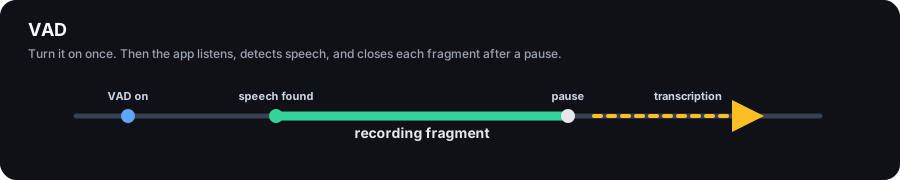
VAD
The main mode for interviews. You turn recording on once, and then the app finds speech on its own, records each phrase and sends it for transcription after a pause. Long monologues are split into chunks so that transcription and the answer start sooner.
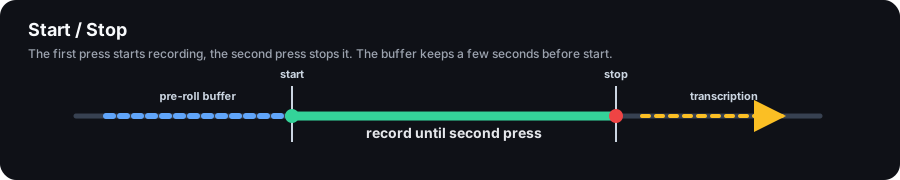
Start / Stop
Recording runs between two presses. The app keeps a short background buffer, so if you press a bit after the phrase started, the first seconds still make it into the recording. Useful when you only want to record the interviewer's questions or specific parts of the call.
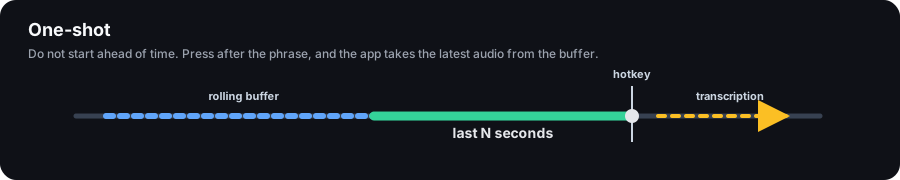
One-Shot
You don't start recording in advance. When the interviewer finishes, press Ctrl/Cmd + R: the app takes the last seconds of the conversation from the buffer and sends them for transcription. The buffer starts filling as soon as the meeting opens. Handy when you can't know ahead of time which moment will matter.
For your first meeting, pick VAD. If it catches too much noise or you want to control every recording, switch to Start / Stop.
Transcription model and language
By default, speech is transcribed by Parakeet. You can pick another model in the recording menu, and each one shows its latency. If a model doesn't respond or returns empty text, the server tries the next one on its own, so the phrase isn't lost. A custom model (BYOK) has no fallbacks: audio goes only to your endpoint.
Transcription language is Russian by default. If the interview is in another language, change it, otherwise recognition gets noticeably worse. The list of languages depends on the model, and some models support auto-detection. If the model recognizes one language while the context answers in another, the recording menu suggests switching transcription to the context's language. It doesn't switch on its own: the interview may be in English while you need answers in Russian.
If transcription mixes up names of technologies or companies, add them to "Recognition terms" in the context. The company and key skills from the meeting's vacancy are added to the terms automatically, but only for Deepgram, Soniox, Inworld and Grok STT.
Translation language turns on translation of the interviewer's lines into the chosen language. Your own lines are not translated.
Realtime transcription
With Nova 3 (Deepgram), STT v5 (Soniox) and STT 1 (Inworld) you can turn on realtime transcription in VAD and Start / Stop modes. Text appears while the person is speaking instead of after the phrase ends, so the answer arrives sooner.
"Enable via proxy" picks the fastest route to the provider on its own; use it if the provider isn't reachable directly. "Enable directly" connects without a proxy.
If a provider stops responding, the app switches to a backup one. In realtime, pauses are detected automatically, so the chunking, stop trigger and speech check settings don't apply. If you set your own proxy in Settings → Application → Network, realtime goes through it.
Auto-reply to interviewer questions
Turn auto-reply on in the recording menu or with Ctrl/Cmd + Shift + A. It works in VAD mode and with realtime transcription. The app detects that the interviewer asked a question and requests an answer right away, without you pressing anything. Only lines from system audio, that is from the interviewer, are checked. The answer uses the model and settings selected in the chat. To control how auto-replies are written, use the "Auto-answer instructions" field in the context.
Capture settings
| Setting | What it affects |
|---|---|
| Audio Source | "System audio + microphone" is the one for interviews: both you and the interviewer end up in the transcript. "System audio only" records the interviewer and app sounds, "Microphone only" records only you. On macOS, system audio requires the "Screen Recording" permission. |
| Microphone | Which microphone records your voice. The same microphone is used for interview recording. |
| Output Device (Windows, Linux) | Which speakers or headphones to record as the interviewer's voice. Choose the device the call audio plays through. On macOS, all system audio is recorded. |
| Buffer Duration (Start / Stop) | How many seconds before the press to add to the start of the recording. Increase it if the beginnings of phrases get cut off. |
| Capture Duration (One-Shot) | How many recent seconds to take on each press. It should be long enough for the whole question. |
| Clear buffer after capture (One-Shot) | The next press won't resend a part that has already been transcribed. |
| Send screenshots with audio (Start / Stop, One-Shot) | Screenshots attached to the input field are sent along with the recording. Doesn't work in VAD. |
| Check audio for speech (Start / Stop, One-Shot) | Recordings without speech are dropped and don't waste time on transcription. Turn it off if you want to send everything. Recordings shorter than a second are dropped either way. |
| Chunking and Chunk Duration (VAD) | Long speech is split into chunks so transcription starts sooner. The split happens on a pause when there is one. |
| Recording Stop Trigger (VAD) | How much silence to wait before closing a phrase, set separately for the microphone and system audio. Increase it if recording cuts the interviewer off during pauses. Decrease it if the transcript arrives late. |
Common issues
You can't hear the interviewer. Make sure the audio source includes system audio. On Windows and Linux, choose the output device the call audio plays through. On macOS, grant the app the "Screen Recording" permission.
Noise triggers recording. Background noise is sometimes mistaken for speech. Use a headset or lower the microphone sensitivity in system settings. In Start / Stop and One-Shot, keep the speech check on.
The beginnings of phrases are cut off. In Start / Stop, increase the buffer duration. In One-Shot, increase the capture duration.
A phrase gets cut in the middle. In VAD, increase the recording stop trigger.
Recordings are dropped as empty. The app found no speech in the recording. Make sure the right microphone is selected and your speech is loud enough.
The transcript has errors. Check the transcription language: it should match the language of the interview. You can also try another model.